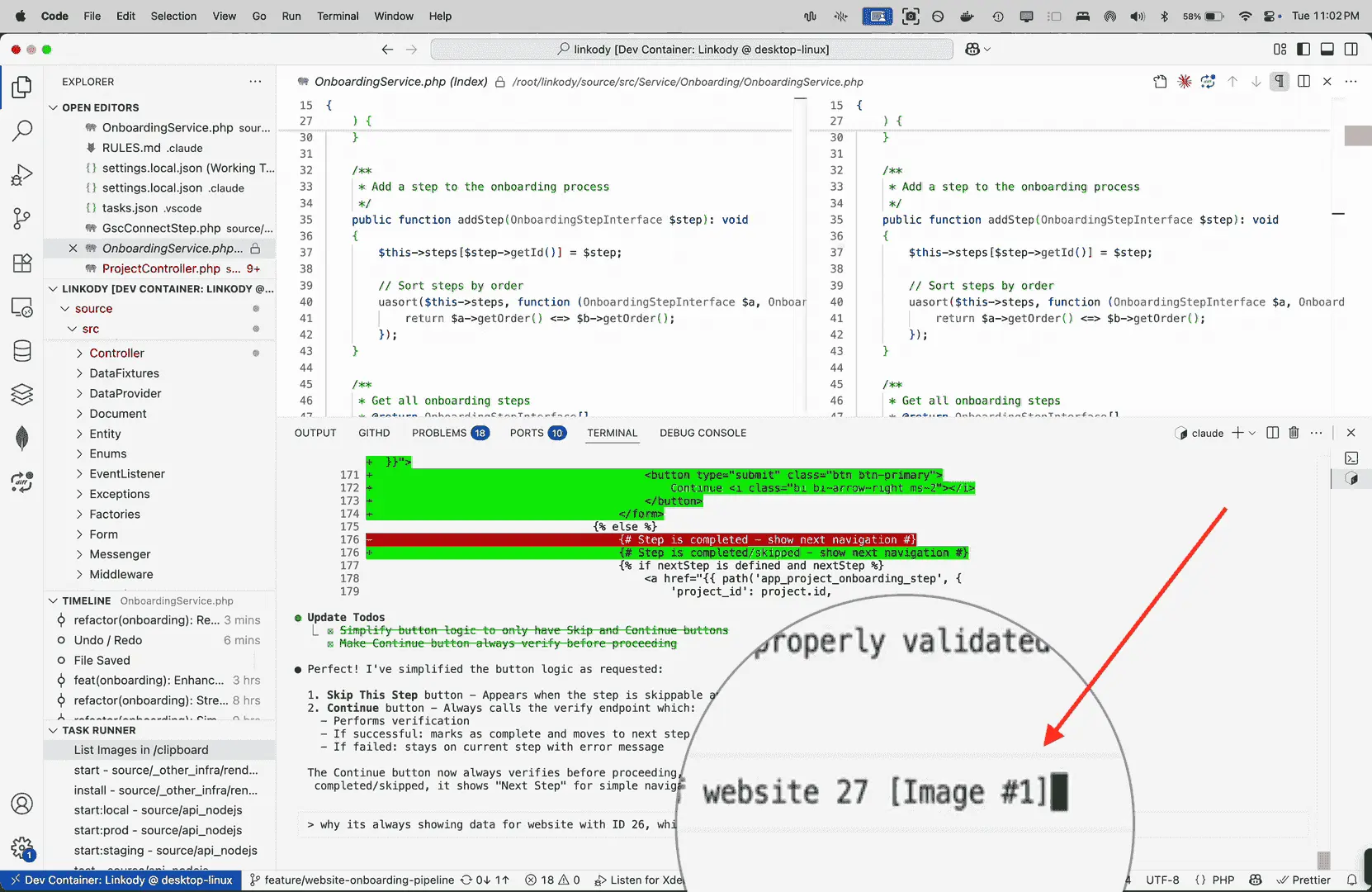
Ever tried pasting a screenshot into Claude Code while running in a devcontainer? It doesn't work. The containerized environment can't access your clipboard. I tried many clipboard tools and scripts on both host and guest machines, even SSH wrappers, but the clipboard never worked. The fix skips the clipboard entirely: paste the image's file path as text instead.
We build production AI systems for clients too, not just devcontainer workarounds. Three examples: a bilingual loan-intake chatbot that cut loan processing from days to minutes, a semantic internal-linking engine built on OpenAI embeddings and vector search, and a workflow-automation integration connecting an AI platform to 2,000+ apps. If you're weighing an AI build of your own, tell us what you're building.
Pasting a File Path Works
When you paste a full file path to an image in Claude Code, it automatically recognizes and attaches the image!
Step 1: Mount Your Screenshots Folder
In .devcontainer/devcontainer.json, add a mount for your screenshots:
{
  "mounts": [
    "source=/Users/shyam/Downloads/tmp,target=/clipboard,type=bind,readonly"
  ]
}
Step 2: Create a Quick List Task
In .vscode/tasks.json, add a task to list recent images:
{
  "tasks": [{
    "label": "List Images in /clipboard",
    "type": "shell",
    "command": "find /clipboard -type f \\( -iname \"*.jpg\" -o -iname \"*.png\" -o -iname \"*.gif\" -o -iname \"*.jpeg\" \\) -printf '%T@ %p\\n' | sort -nr | head -n 10 | cut -d' ' -f2-"
  }]
}
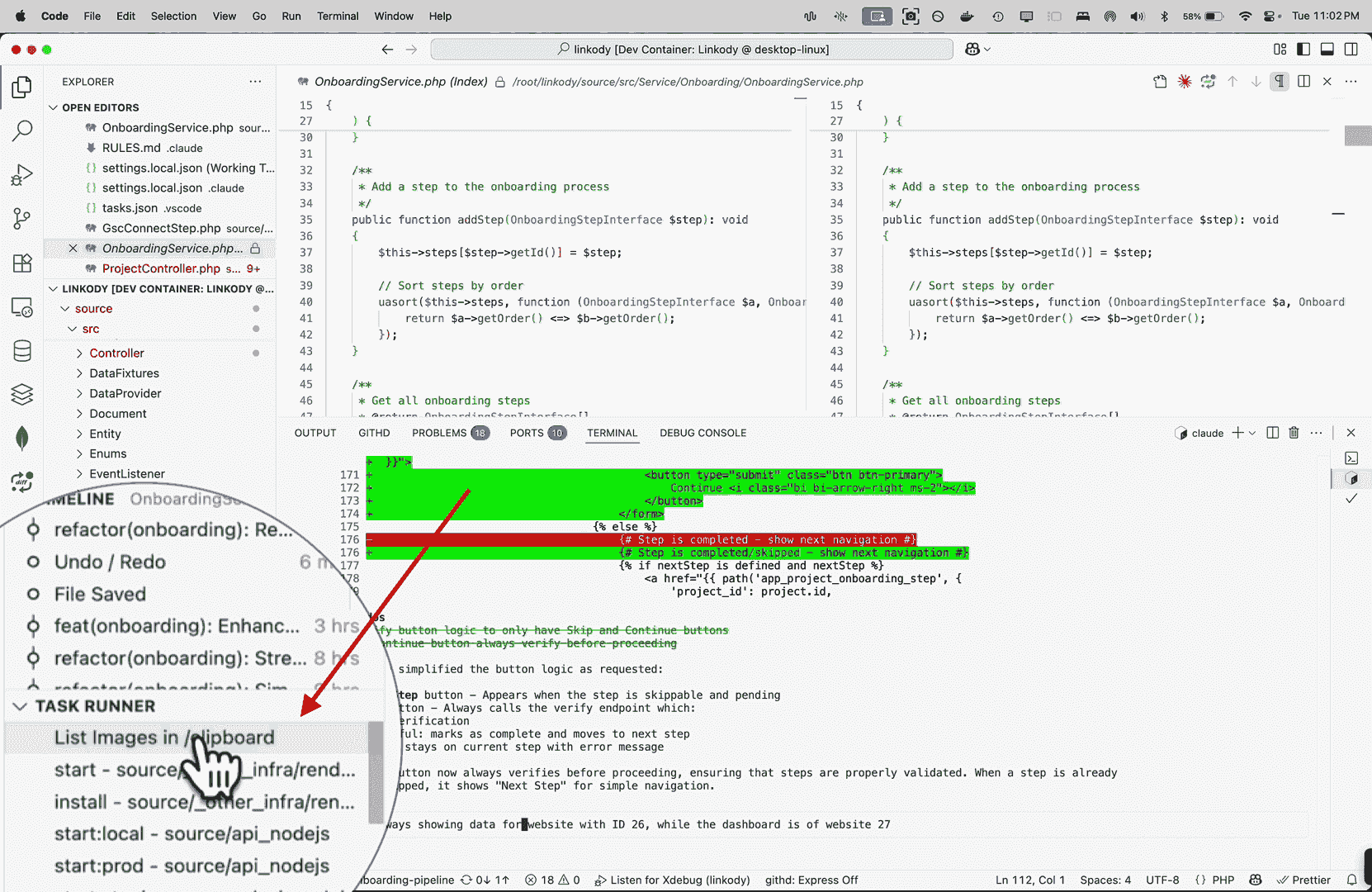
Step 3: One-Click with Task Runner
Install the Task Runner extension for instant access:
"extensions": ["SanaAjani.taskrunnercode"]
The Workflow
1. Take and Save Screenshot
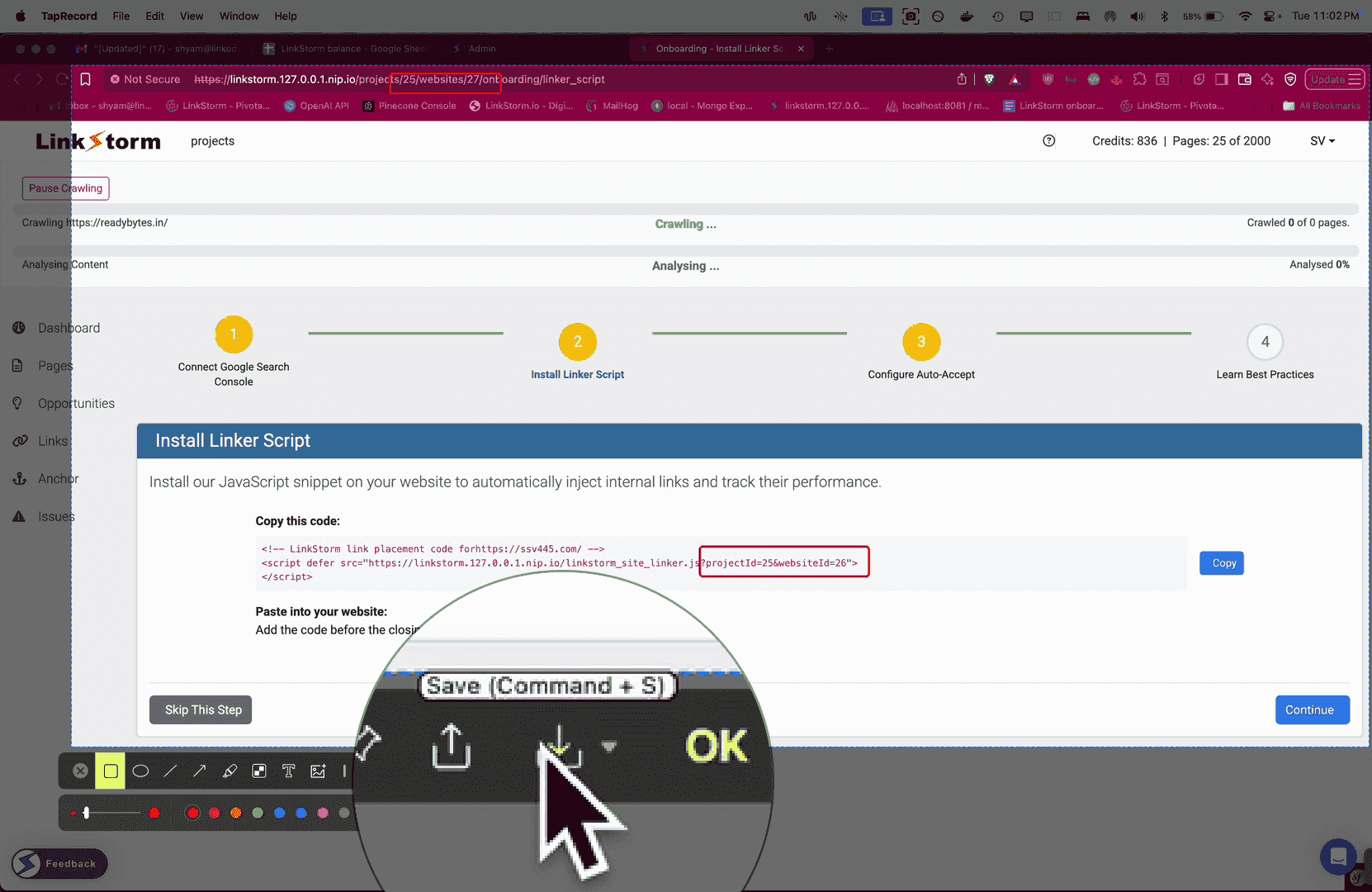
2. Click Task Runner
3. Copy the Latest Image Path
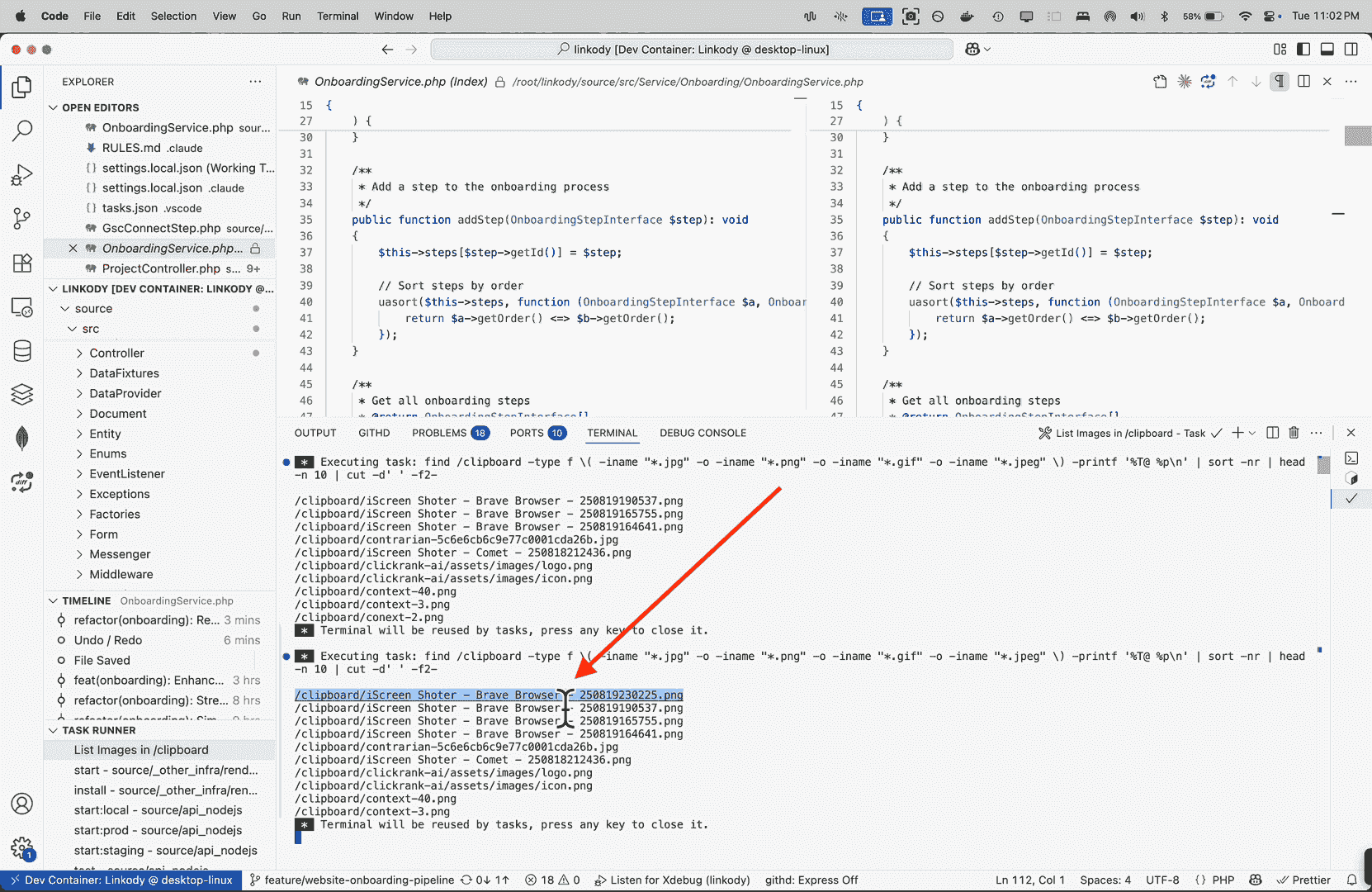
4. Paste Path - Claude Handles It!
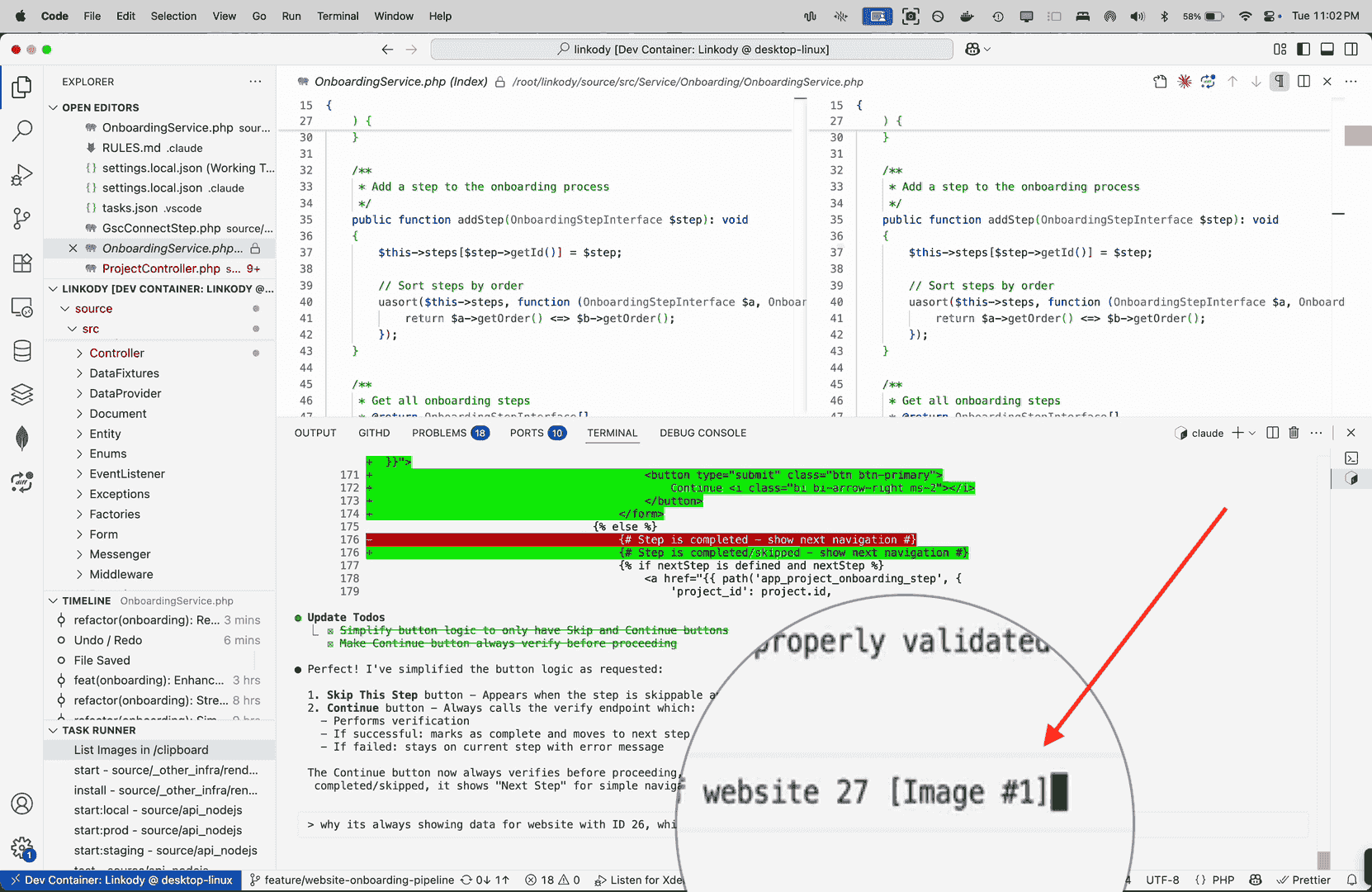
Example in Action
# Task output shows:
/clipboard/error_2025-01-19.png
/clipboard/ui_mockup.png

# Just paste in Claude Code:
"Check this error: /clipboard/error_2025-01-19.png"
# → Image automatically appears as attachment!
Why This Works
- Docker mount makes host files visible in container
- Task lists paths sorted by newest first
- Claude Code's built-in feature recognizes image paths and auto-attaches them
- No manual file transfers or complex workarounds needed
Pro Tips
- Use a specific folder for screenshots, not your main Downloads
- Configure your screenshot tool to save there automatically
- The mount is read-only, so you can't accidentally modify anything from inside the container
- Periodically clear out old screenshots to keep the list manageable
Conclusion
The key was discovering that Claude Code automatically attaches images when you provide their full path. Combined with a Docker mount and a one-click task, you can copy a screenshot's path and paste it straight into Claude Code, no clipboard access required.

Shyam Verma
Full Stack Developer & Founder
Shyam Verma is a seasoned full stack developer and the founder of Ready Bytes Software Labs. With over 13 years of experience in software development, he specializes in building scalable web applications using modern technologies like React, Next.js, Node.js, and cloud platforms. His passion for technology extends beyond coding—he's committed to sharing knowledge through blog posts, mentoring junior developers, and contributing to open-source projects.