Building a 26-Block CMS: How I Made Content Editors Love Headless
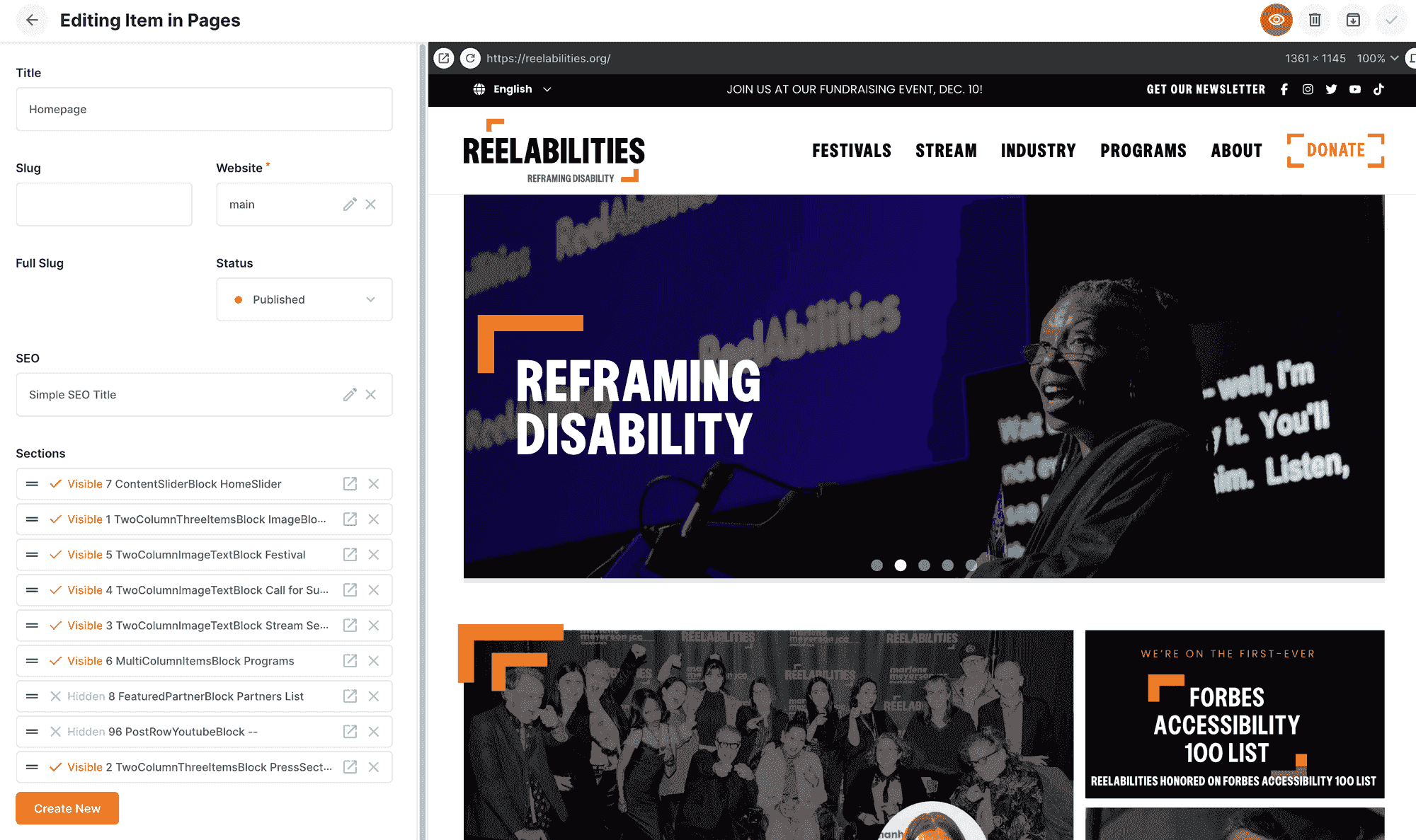
The biggest problem with headless CMS: no visual page builder. Here's how I built a 26-block content system that supports non-technical editors.
Published on World Accessibility Day 2025 - Accessibility is built into the foundation of this system. Every one of the 26 blocks is WCAG 2.1 compliant by default.
The Headless CMS Problem
When I told the ReelAbilities Film Festival team we were migrating from WordPress to a headless CMS, I got this response:
"So every time we want to change the homepage or add a new section, we'll need to call you?"
This is the #1 blocker to headless CMS adoption.
WordPress Has:
- Gutenberg block editor (drag-and-drop)
- Elementor page builder (visual WYSIWYG)
- 60,000+ plugins for everything
- Non-technical users productive in 5 minutes
- Visual preview while editing
Headless CMS Has:
- Markdown or raw JSON fields
- No visual page builder
- Developer dependency for layouts
- Code changes for new page sections
- "Call the developer" syndrome
The client's fear was valid. Without a solution, we'd create a developer bottleneck worse than WordPress.
The Challenge
Build a system where:
- Content editors can build complex pages independently
- Design system constraints are enforced (can't break layouts)
- Type safety prevents runtime errors
- Performance stays optimal (server-side rendering)
- Reusability across 15+ city festival sites
- Accessibility built-in (WCAG 2.1 compliant)
- No visual builder needed (CMS form-based)
The Solution: A LEGO-Like Block System
I built a block-based content system that rivals WordPress Gutenberg—without the visual builder complexity.
Think of it like LEGO blocks: each piece has a specific shape and purpose, and you can build anything by combining them in different ways.
System Overview:
- 26 content blocks (like 26 different LEGO piece types)
- 20 static blocks (content editors fill in text/images)
- 6 dynamic blocks (automatically pull data from the database)
- Type-safe validation (blocks won't "snap together" incorrectly)
- Auto-generated documentation (instructions for each block type)
- Built with Next.js 15 and Directus CMS
Content editors build pages faster than WordPress, with zero broken layouts.
The Two Types of Blocks
Static Blocks (20 blocks) - "Fill in the Blanks"
These are like form templates. Content editors fill in fields like title, description, and image, and the block displays them in a predefined layout.
Examples:
TwoColumnImageTextBlock - Image on one side, text on the other (like a magazine layout)
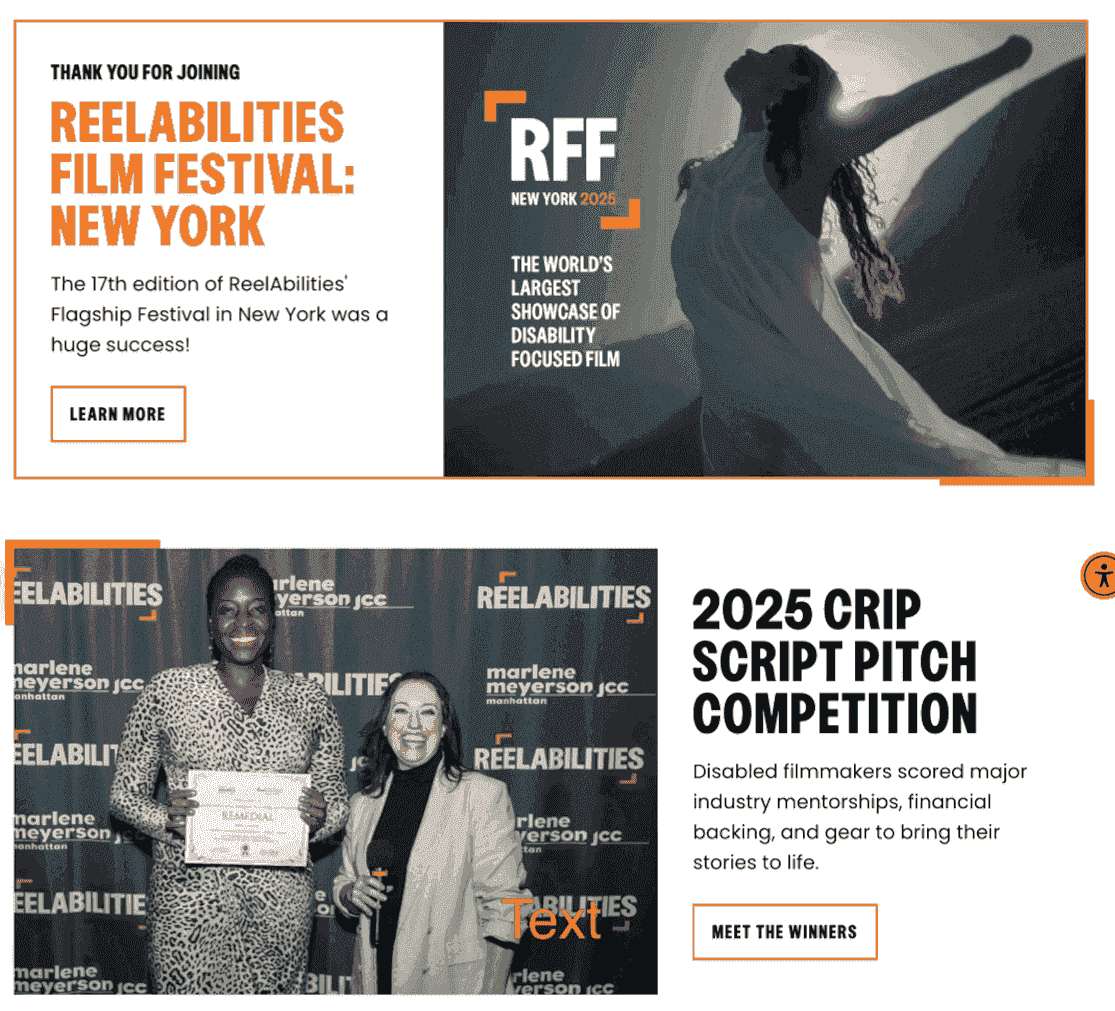
MultiColumnItemsBlock - Grid of 2-4 items (like a service showcase)
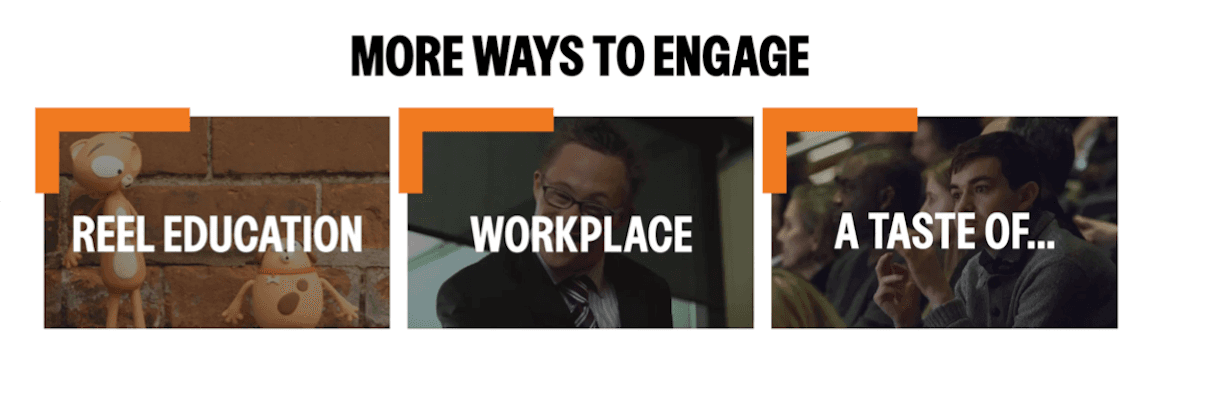
InfoListBlock - Expandable FAQ-style list
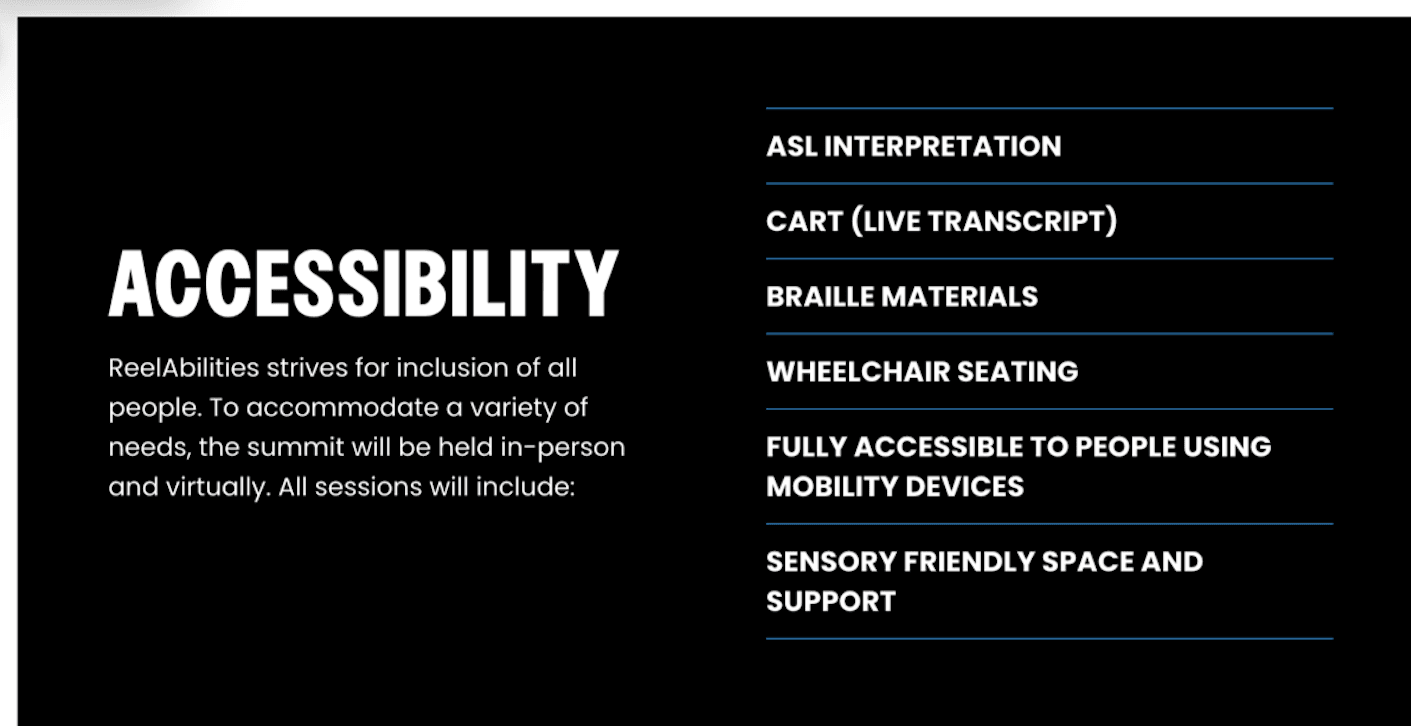
NumberedTextBoxBlock - Step-by-step guides with numbers
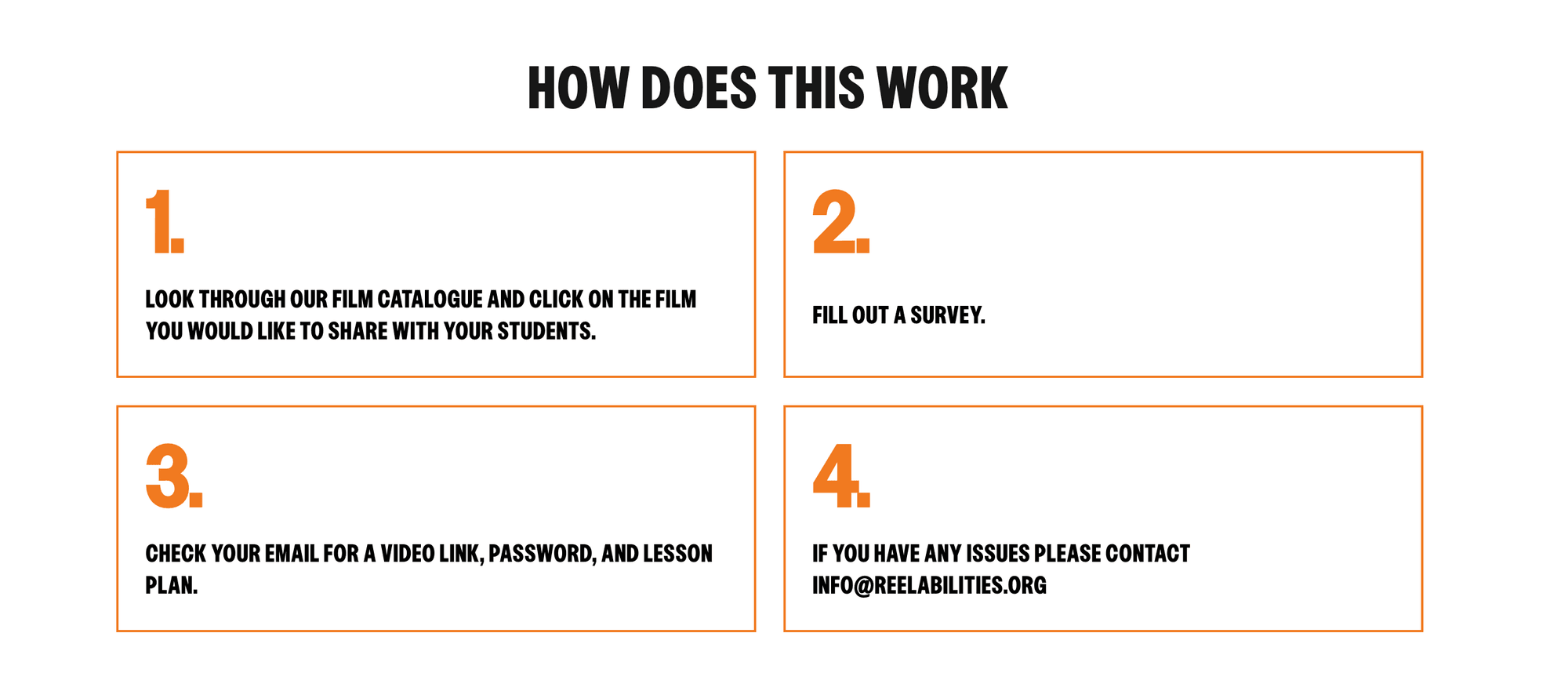
How It Works:
- Editor chooses "TwoColumnImageTextBlock" from dropdown
- Fills in: title, description, upload image, add button
- Configures: Image left or right? Highlight mode on/off?
- Publish
Editors can't break the design. Fields are validated—if you forget the image, you get a helpful error message instead of a broken page.
Dynamic Blocks (6 blocks) - "Auto-Populate from Database"
These blocks automatically fetch and display data from collections (like events, partners, films).
Examples:
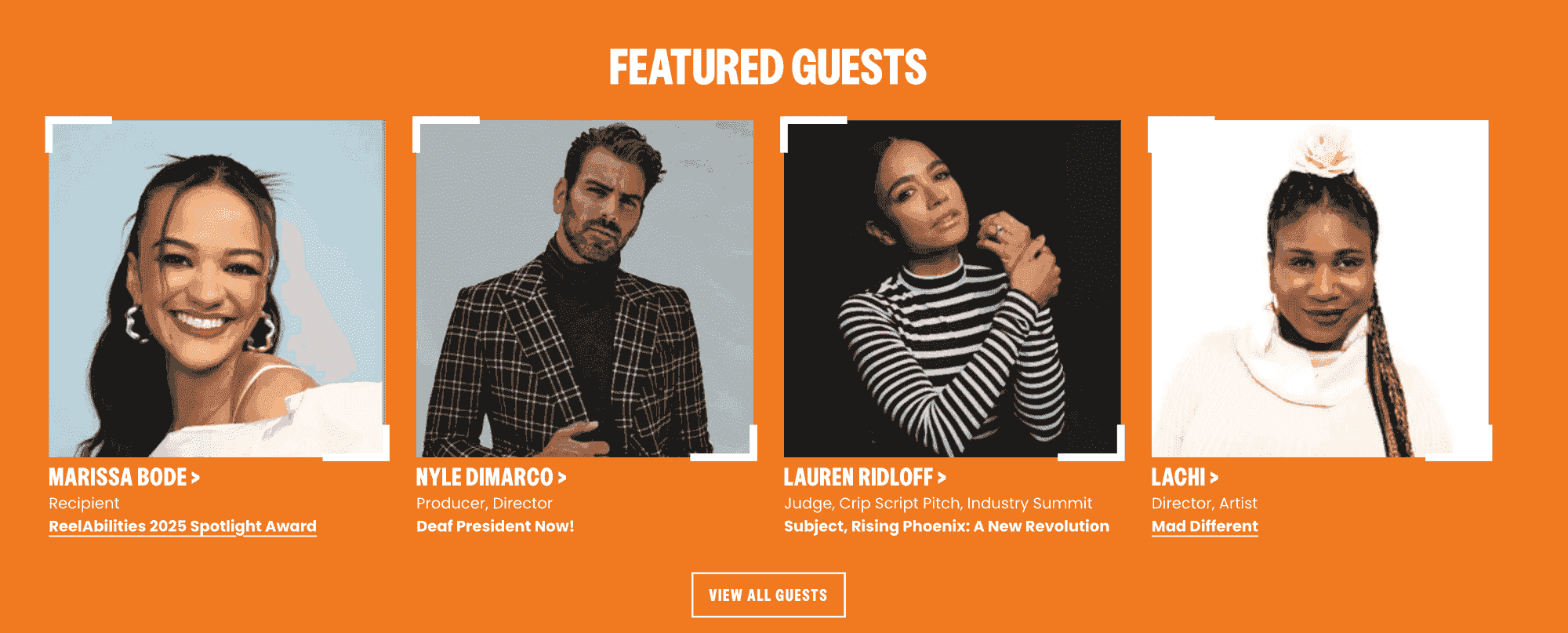
CityScheduleBlock - Shows next 3 upcoming events (auto-updates daily)
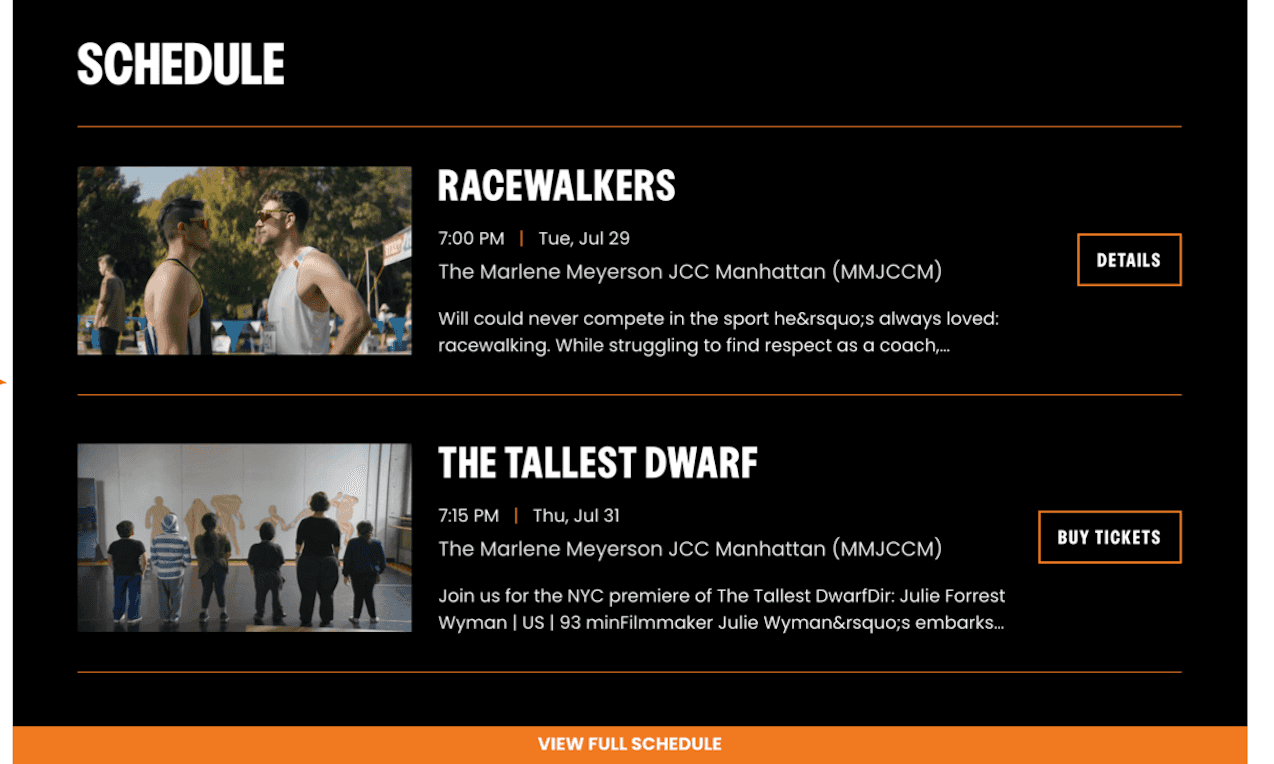
CityFeaturedGuestBlock - Highlights featured festival guests
How It Works:
- Editor chooses "CityScheduleBlock"
- Sets configuration: "Show 3 events"
- Block automatically fetches upcoming events from the database
- Publish
The Magic: Content stays fresh without manual updates. When a new event is added to the database, it automatically appears on the homepage.
How the System Works (Non-Technical Explanation)
The Registry: A Phone Book for Blocks
Imagine a phone book where you look up a name (block type) and get the address (component to render).
When a page loads:
- System reads: "This page has TwoColumnImageTextBlock at position 1"
- Looks up in registry: "TwoColumnImageTextBlock = this React component"
- Renders that component with the editor's content
- Repeat for all blocks on page
Adding a new block type is as simple as adding a new entry to the phone book. No complex routing, no database migrations.
Validation: The "Smart Snap" System
Remember LEGO blocks that only fit together in certain ways? Our validation does that for content.
Example Validations:
- TwoColumnImageTextBlock needs exactly 1 item (not 0, not 2)
- That item must have: title, description, and image
- MultiColumnItemsBlock needs 2-4 items, or even numbers above 4
- InfoListBlock's first item must have a title (the main header)
When Validation Fails:
Instead of a broken page, editors see:
Block Validation Error in TwoColumnImageTextBlock:
- Items count must be exactly 1. Found: 0
The message is clear enough that editors can fix the problem themselves, without calling a developer.
Configuration: Fine-Tuning Without Code
Each block can be customized through simple key-value pairs (like settings in your phone). The same block produces many different layouts, all without touching code.
The Content Editor Experience
Building a Homepage in 15 Minutes
Let me show you how a content editor builds a complex page:
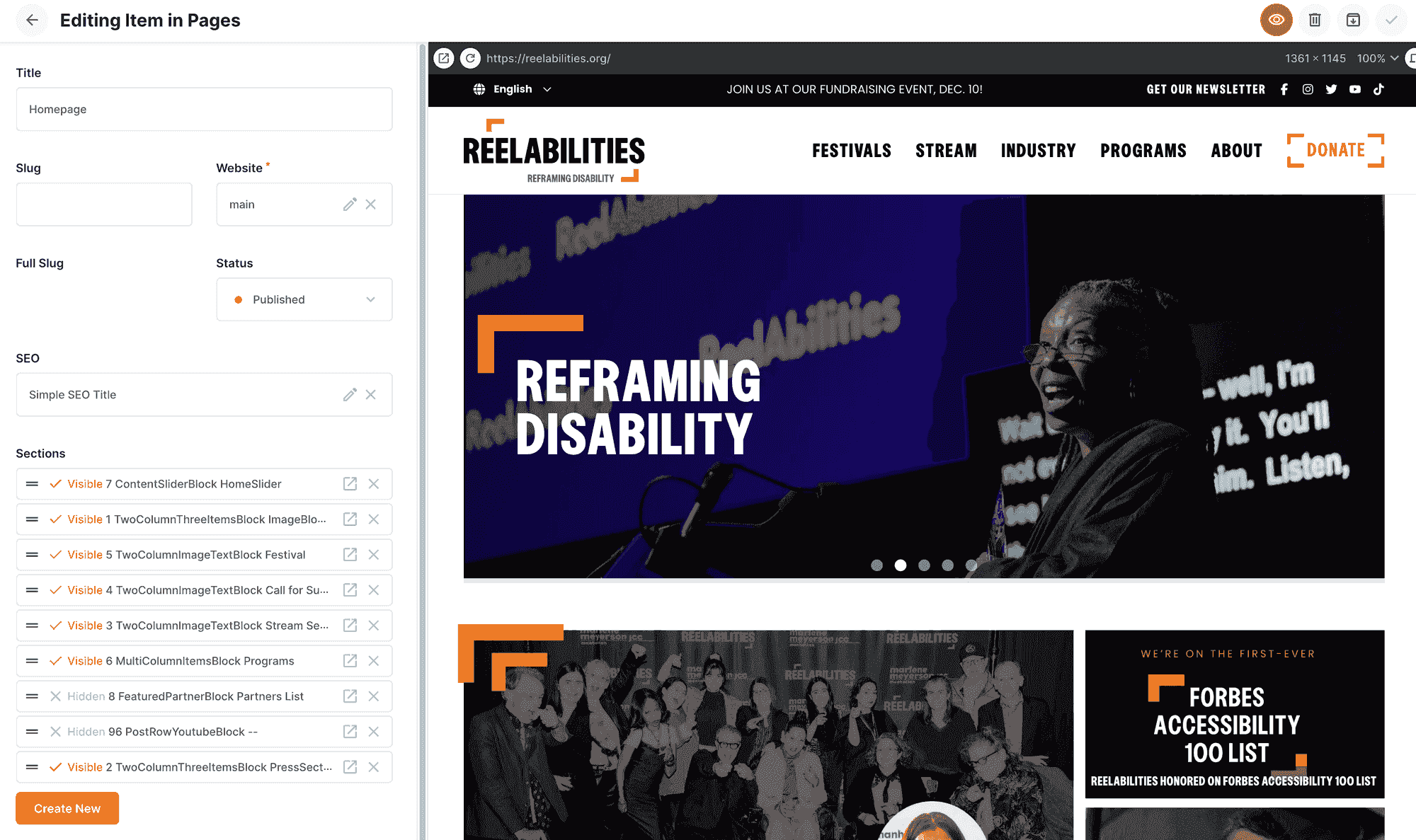
Step 1: Choose Your Blocks
In the CMS, add block sections like stacking pancakes:
- HeroCarouselBlock (auto-rotating images)
- TwoColumnImageTextBlock (welcome message)
- MultiColumnItemsBlock (4 services in a grid)
- CityScheduleBlock (next 3 events, auto-updated)
- FeaturedPartnerBlock (partner logos, auto-fetched)
- PostRowButtonBlock (big "Register Now" button)
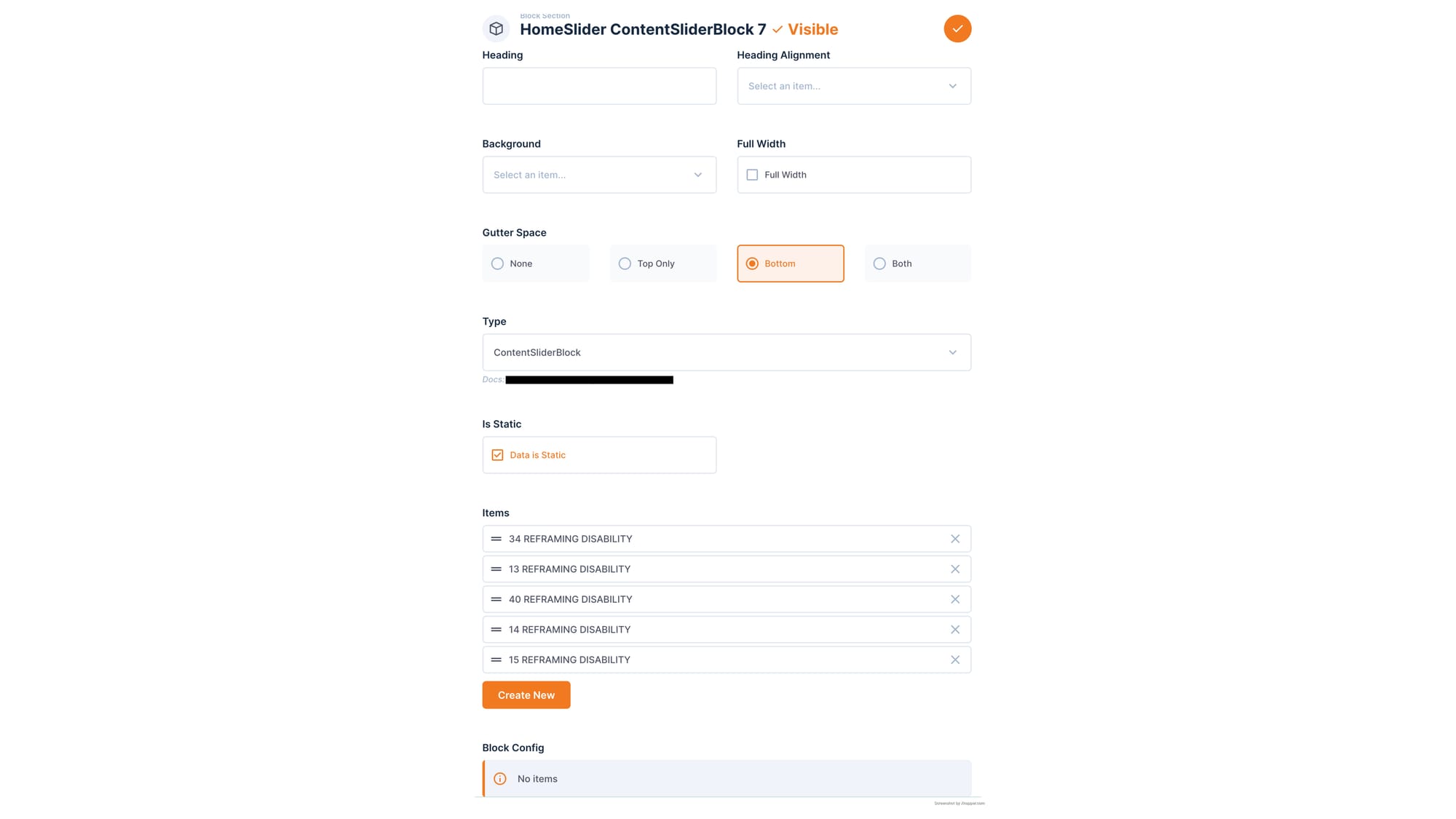
Step 2: Fill in Content
For static blocks, fill in forms:
- Title: "Welcome to ReelAbilities 2025"
- Description: "Celebrating inclusion through film..."
- Upload image
- Add button: "Learn More" → /about
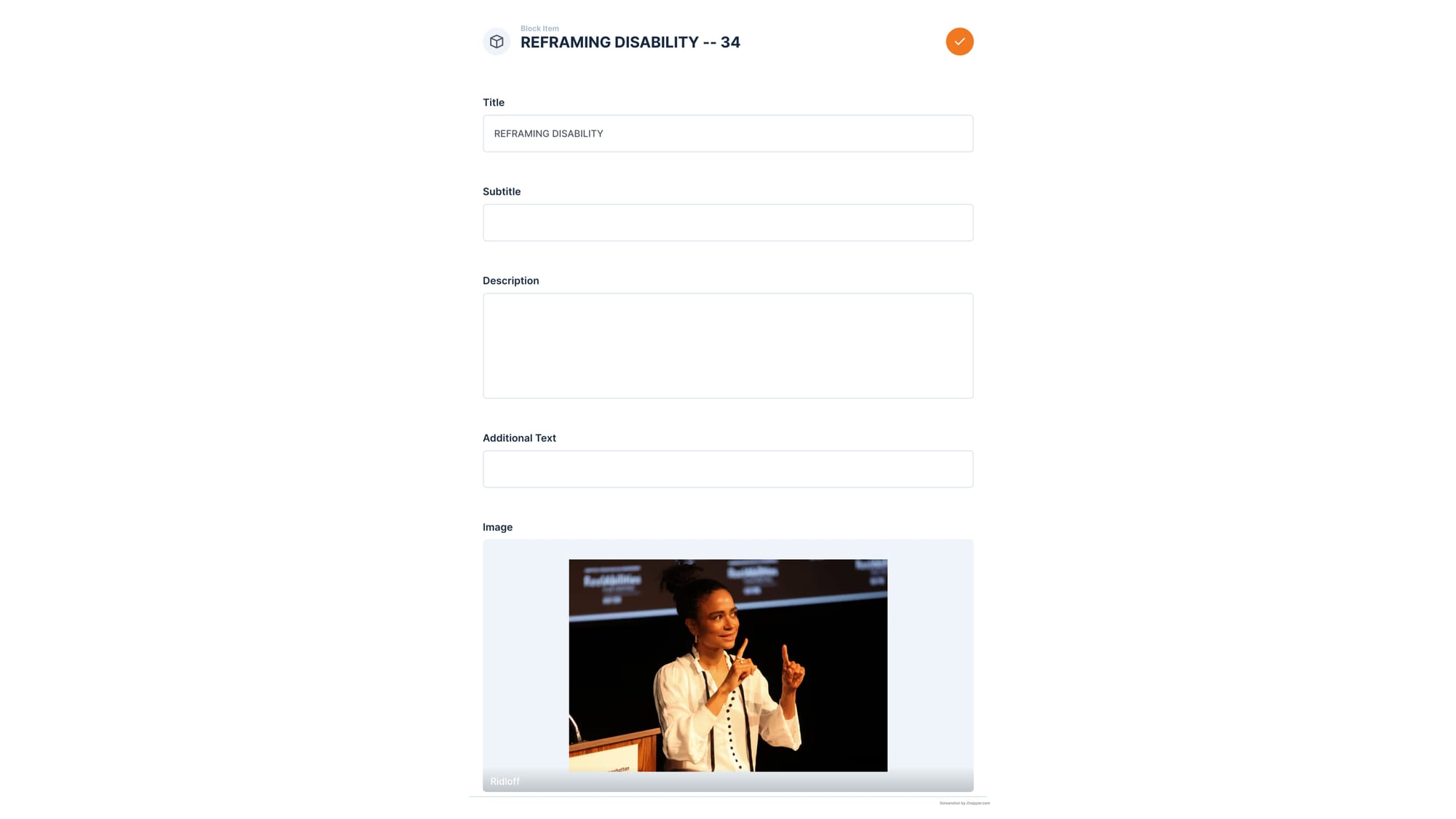
For dynamic blocks, just configure:
- Limit: 3 (show 3 events)
- Featured: true (only featured partners)
Step 3: Configure Layout
- Image left or right?
- Show accent decorations?
- Background color black or white?
- Full width or contained?
Step 4: Publish
Time: 15-20 minutes
Developer help needed: Zero
Result: Professional page, impossible to break design
Real Feedback from Content Editors
"This is actually easier than Gutenberg once you learn it. I don't have to worry about breaking the design."
— Festival Content Manager
Real-World Impact:
- 30+ pages built by content team independently
- Training time: 2 hours (one session)
- Update time reduced from hours to 15 minutes
- Developer bottleneck eliminated
- Time to market: Same-day vs 1-2 weeks previously
The Complete Block Catalog
Layout Blocks (for page structure)
- TwoColumnImageTextBlock - Image + text side-by-side
- TwoColumnThreeItemsBlock - Special 3-item layout
- MultiColumnItemsBlock - Grid of 2-4 items (or even numbers)
- NumberedTextBoxBlock - Numbered steps (1, 2, 3...)
- InfoListBlock - Main item + expandable list
Navigation Blocks (for menus and links)
- AccentedNavigationBlock - Stylized section links
- ListNavigationBlock - Simple bullet list of links
- PostRowButtonBlock - Big CTA button rows
Media Blocks (for visuals)
- PostRowImageBlock - Image galleries
- PostRowYoutubeBlock - YouTube embeds
- PostRowEmbedBlock - Third-party content (maps, forms)
- ContentSliderBlock - Full-width image carousels
- HeroCarouselBlock - Auto-rotating hero sections
Content Blocks (for text)
- PostRowHeaderBlock - Large text headers
- PostRowHTMLBlock - Rich text content
- PostRowItemBlock - Generic content cards
- AccentedTextListBlock - Styled bullet lists
- TicketPriceBlock - Pricing information
City-Specific Blocks (for festivals)
- CityHomepageHeaderBlock - City landing page hero
- CityEventsSliderBlock - Event carousels
Dynamic Data Blocks (auto-updating)
- CityScheduleBlock - Upcoming events (auto-updates)
- CityFeaturedGuestBlock - Featured speakers
- CityFeaturedProgramBlock - Featured programs
- FeaturedPartnerBlock - Partner/sponsor logos
- ReelEducationGradeBlock - Education grade listings
- StreamListBlock - Film catalog (6 display modes)
26 Blocks Total - Like having 26 different LEGO piece types to build any page you need.
Documentation System
Each of the 26 blocks has its own guide with:
- Block overview and use cases
- Required and optional fields
- Configuration options
- Real examples
- Accessibility notes
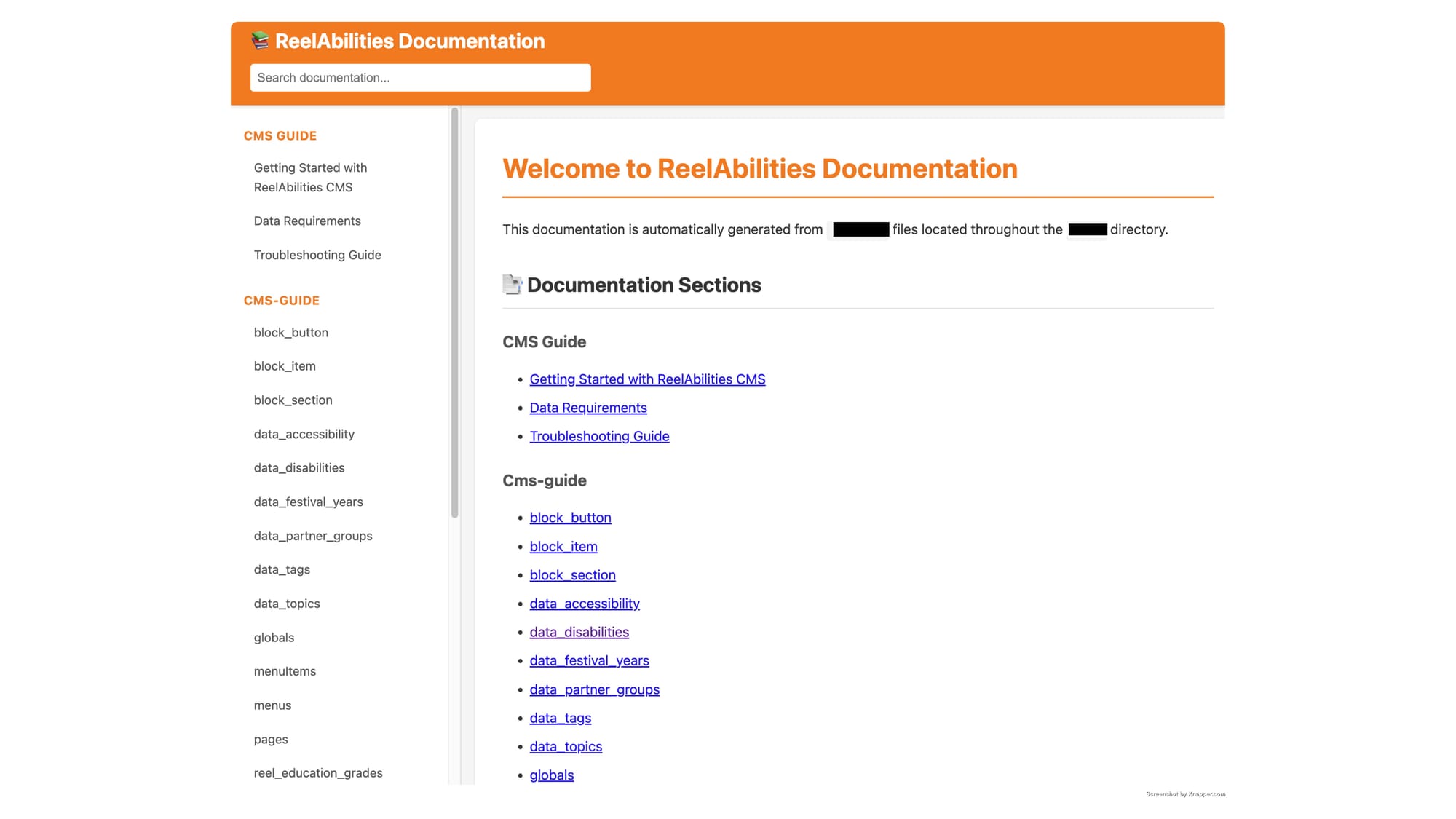
All guides are compiled into a searchable documentation site at /docs with full-text search and category browsing.
Comparison to WordPress Gutenberg
What WordPress Does Better:
- Visual drag-and-drop
- Real-time preview
- Familiar interface (millions of users)
- Zero training needed
What Our System Does Better:
- Can't break the design (validation prevents it)
- Faster performance (server-rendered, not JavaScript-heavy)
- Type safety (errors caught before publish)
- Multi-site reusability (15 festivals, one codebase)
- Auto-updating content (dynamic blocks)
The Trade-Off: WordPress is easier to start, our system is more powerful once learned (2-hour learning curve).
Lessons Learned
What Worked Exceptionally Well
1. Standardization from Day One
- All 26 blocks use the same props interface
- Consistent validation patterns
- Same configuration system
- Adding new blocks stayed easy because the patterns were clear
2. Configuration Over Code
- Block behavior controlled by simple key-value pairs
- No code changes for layout variations
- Content editors have power
- Developer requests dropped to zero
3. Comprehensive Validation
- Helpful error messages (not cryptic)
- Errors caught in development (not production)
- Prevents broken layouts
- Production bugs stayed near zero
4. Documentation-First Approach
- Every block documented before release
- Real examples in every guide
- Searchable documentation site
- Training time dropped from days to 2 hours
5. Progressive Complexity
- Started with 5 simple blocks
- Perfected the pattern
- Scaled to 26 blocks
- Each new block was easier to build than the last
What I'd Do Differently
1. Build Preview Mode on Day One
- Content editors want to see before publishing
- Would have reduced "does this look right?" questions
- Preview turned out to be essential
2. Visual Block Browser
- Catalog with screenshots (not just names)
- "Choose by appearance" would be faster
- Names like "MultiColumnItemsBlock" aren't intuitive
Common Pitfalls We Avoided
Pitfall 1: Over-Engineering
- Could have spent months building a visual builder
- CMS forms + good docs work great
- Don't build what you don't need
Pitfall 2: Inconsistent Patterns
- Early blocks had different validation styles
- Standardized quickly, avoided refactoring pain
- Establish patterns early and enforce them
Pitfall 3: Poor Error Messages
- First attempt had cryptic errors like "Invalid item"
- Invested in helpful messages: "Item must have field: image"
- Error messages are part of UX
Pitfall 4: Skipping Documentation
- Blocks without docs = constant questions
- Documentation significantly reduced support requests
- Documentation is not optional
Key Takeaways
The Core Pattern:
- Standardize all blocks (same props interface)
- Configure, don't code (JSON-based behavior)
- Validate aggressively (helpful errors)
- Document everything (one guide per block)
- Start small, scale progressively (5 → 26 blocks)
When This Works:
- Developer team available (React/TypeScript)
- Design system exists
- Performance matters
- Multiple sites need shared components
- Content team willing to learn (2-hour training)
When WordPress Is Better:
- Non-technical team, no developer
- Need visual WYSIWYG
- Simple blog or brochure site
- Need quick launch
Tech Stack:
- Next.js 15 (App Router, Server Components)
- Directus CMS (self-hosted, TypeScript)
- TypeScript (strict mode)
- Tailwind CSS
- Docker

Shyam Verma
Full Stack Developer & Founder
Shyam Verma is a seasoned full stack developer and the founder of Ready Bytes Software Labs. With over 13 years of experience in software development, he specializes in building scalable web applications using modern technologies like React, Next.js, Node.js, and cloud platforms. His passion for technology extends beyond coding—he's committed to sharing knowledge through blog posts, mentoring junior developers, and contributing to open-source projects.